
Free hex map maker
Get a whole hex map in one click, then paint any hex and number them for your hexcrawl.

This free hex map maker draws a finished hex map for you, with terrain, rivers, towns and names already on it. Press New map until you get one you like, tap any hex to change what's there, number the hexes for your notes and download a PNG for your table or virtual tabletop.
Because this hex map generator works from a whole world, mountains come in ranges, rivers run downhill to the sea and forests sit where the rain falls, so the map already makes sense before you touch it. You skip the blank page and get right to deciding where the dragon lives. It's the same world as the fantasy map generator on the homepage, drawn as hex tiles.
How to make a hex map
To make a hex map, pick a scale first, usually 6 miles per hex for a hexcrawl. Then pick flat-top or pointy-top hexes to match your game, lay out the terrain, number the hexes so your notes can point at them, and export at a set number of pixels per hex if it's going on a virtual tabletop. This is how that works here:
- Get a world. Press New map until the coastline gives you ideas. The World tab sets the land shape, how much of the map is land, the climate and the size.
- Set the scale. On the Hex tab, Hexes across sets how many hexes fit across the map, and Miles per hex sets how much ground each one covers. The scale bar follows along.
- Pick a direction. Flat top or Pointy top, whichever your game or virtual tabletop expects.
- Fix the terrain. On the Paint tab, pick a terrain and tap or drag over the hexes you want to change. The painted map changes with them.
- Number the hexes. Turn on Hex numbers on the Hex tab, so every hex has a label like 0304 you can key your notes to.
- Save it. On the Save tab, pick how many pixels each hex should be and download the PNG, or copy a link that rebuilds the exact map for anyone you send it to.
One world, drawn two ways
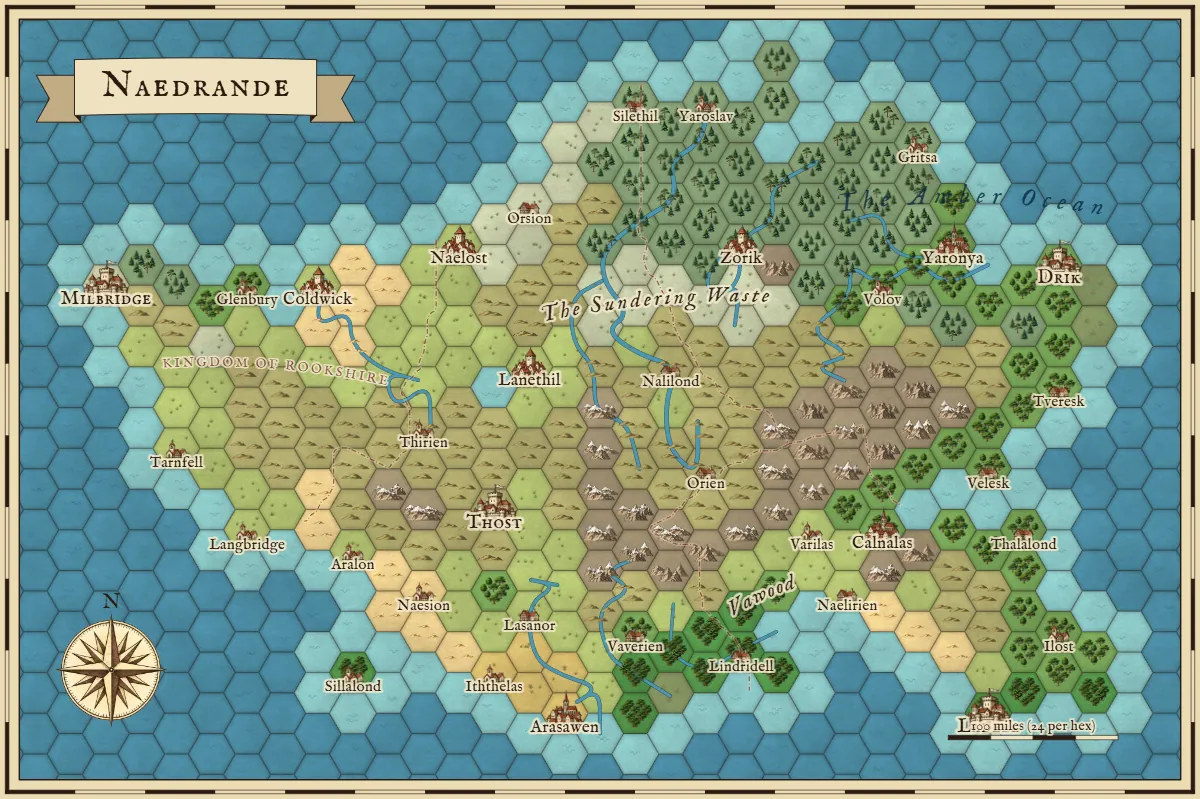
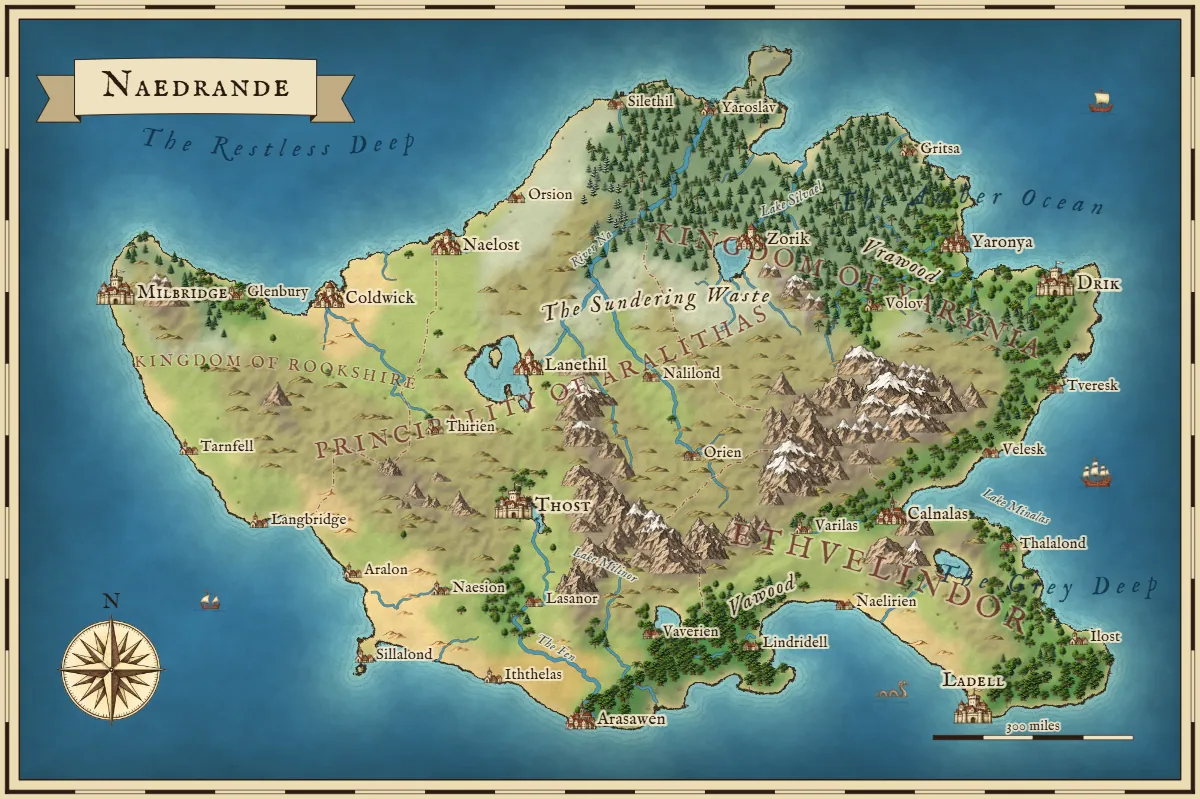
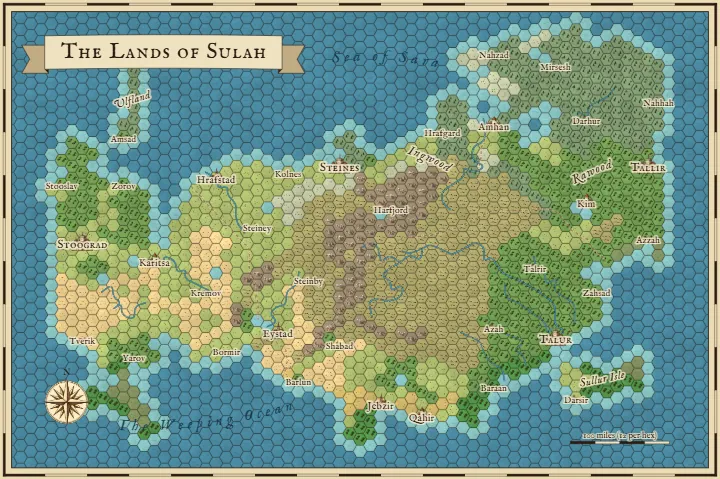
These two pictures are the same map. The tiles come from the terrain underneath, so you can run a hexcrawl on one and show your players the other as the handout. Anything you paint here shows up on the painted map, which is one tap away with Painted map at the top of the page.
Picking your hex size
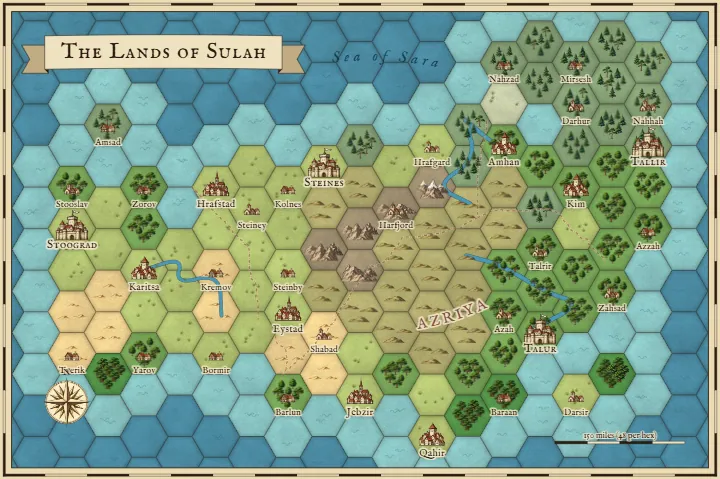
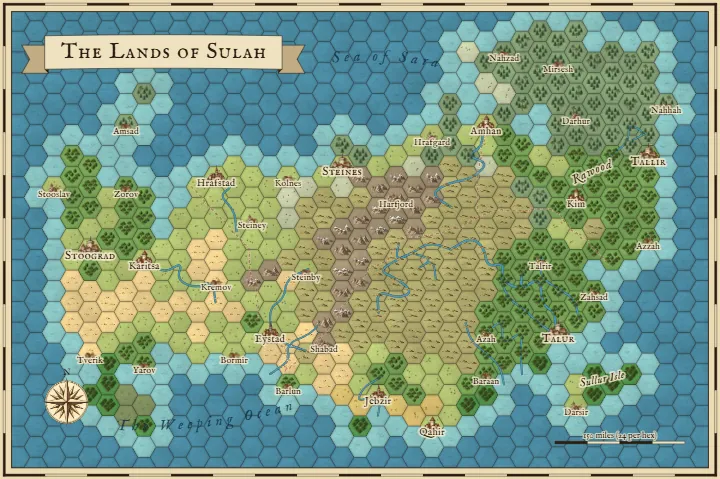
The Hex tab sets how many hexes go across the map, from 8 to 120. That changes how much detail you get, and the world stays the same. Fewer hexes work well for a campaign overview you can read at a glance. More hexes give you room for an exploration map where every hex needs its own note. Here's one world at 20, 40 and 70 hexes across.
Miles per hex
Set your number with the Miles per hex slider and the scale bar follows along. The scale you pick depends on what the map is for. These are the sizes I'd start from:
- 1 mile per hex for the land around one town, where a party can reach several hexes in an hour.
- 6 miles per hex for a region to explore on foot. A day's walk covers about four hexes, which is why this is the usual size for a hexcrawl.
- 24 miles per hex for a kingdom, at about one hex per day of travel.
- 48 miles or more per hex for a continent, when you mostly care about who borders who.
Flat-top or pointy-top, with numbers
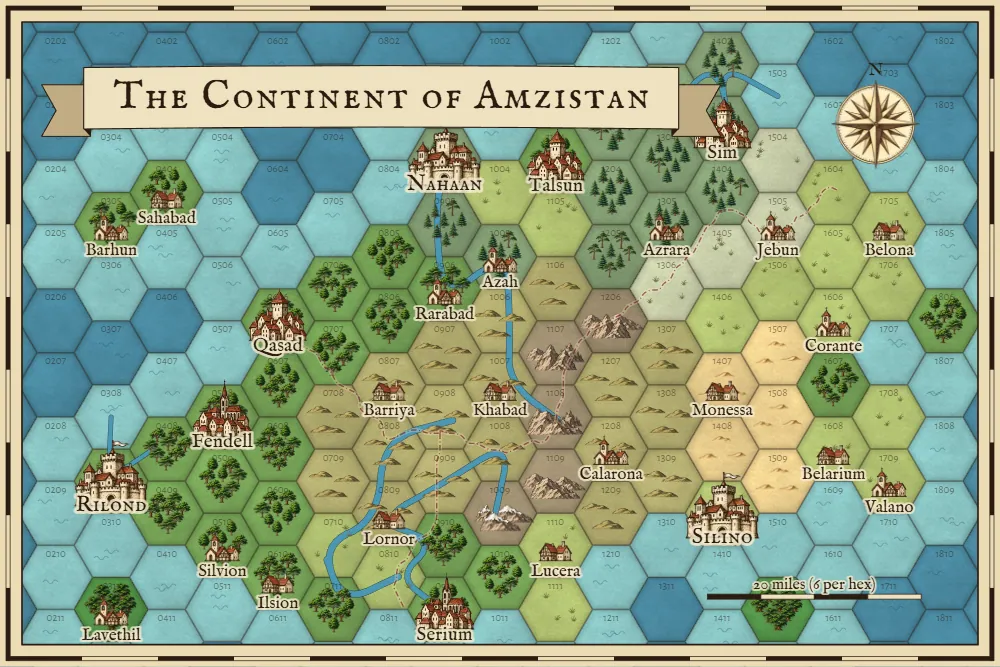
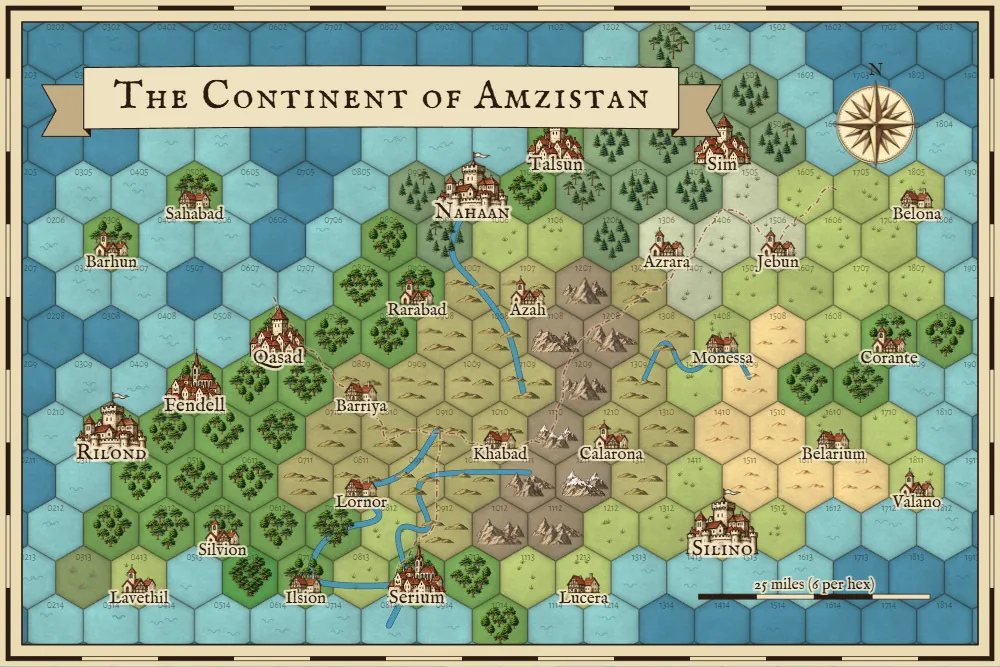
Both directions are one tap away, and the numbers follow the usual column and row style, so 0304 is column 3, row 4. That matches how most hexcrawl notes are written. Turn the numbers on before you print or export, because they're what you'll point at during the game.
Tiles, or a grid over the map
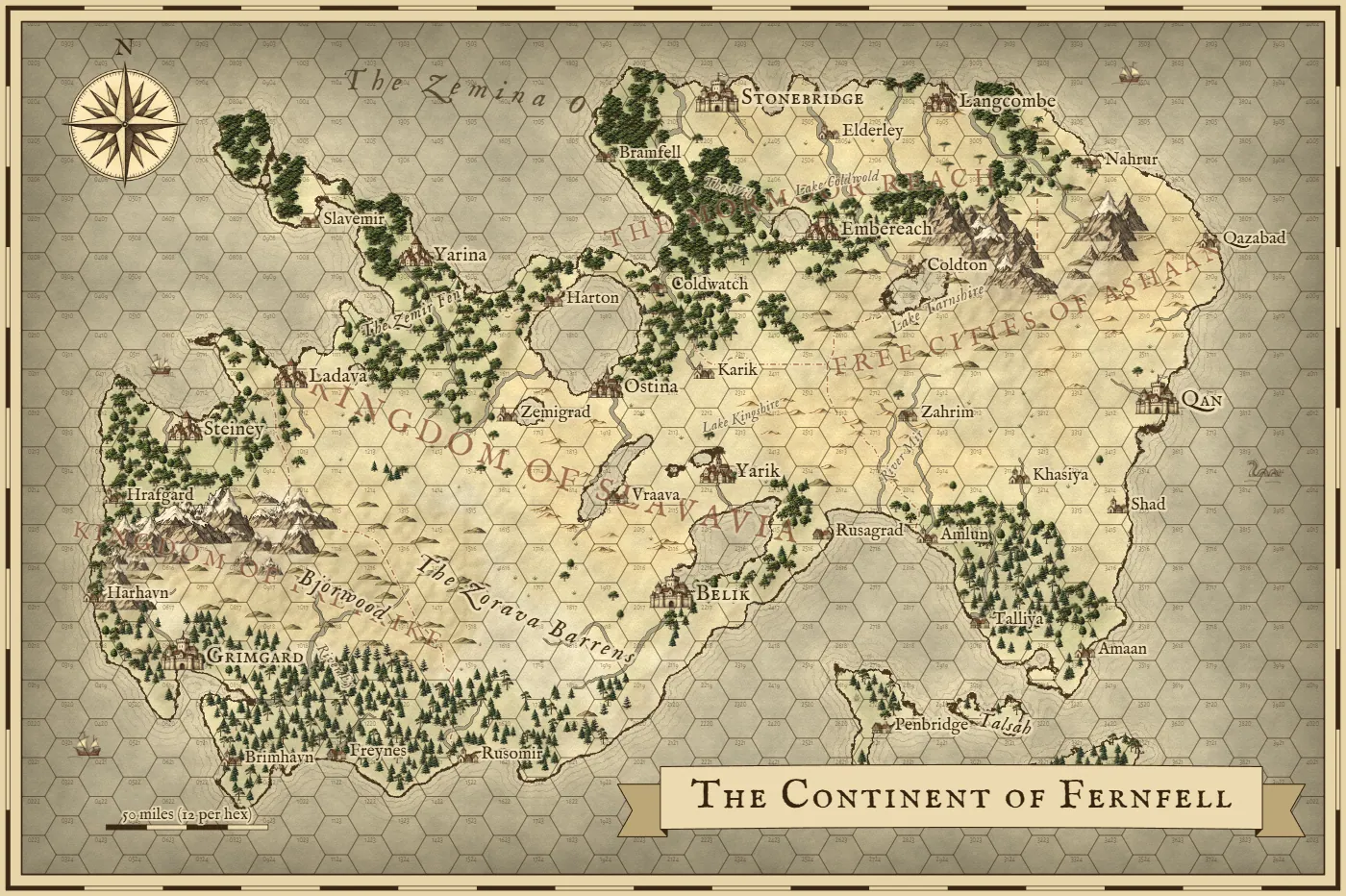
Hex style on the Hex tab switches between terrain tiles and a grid laid over the painted map, for people who like their terrain to stay natural. The Style tab works in hex view too.
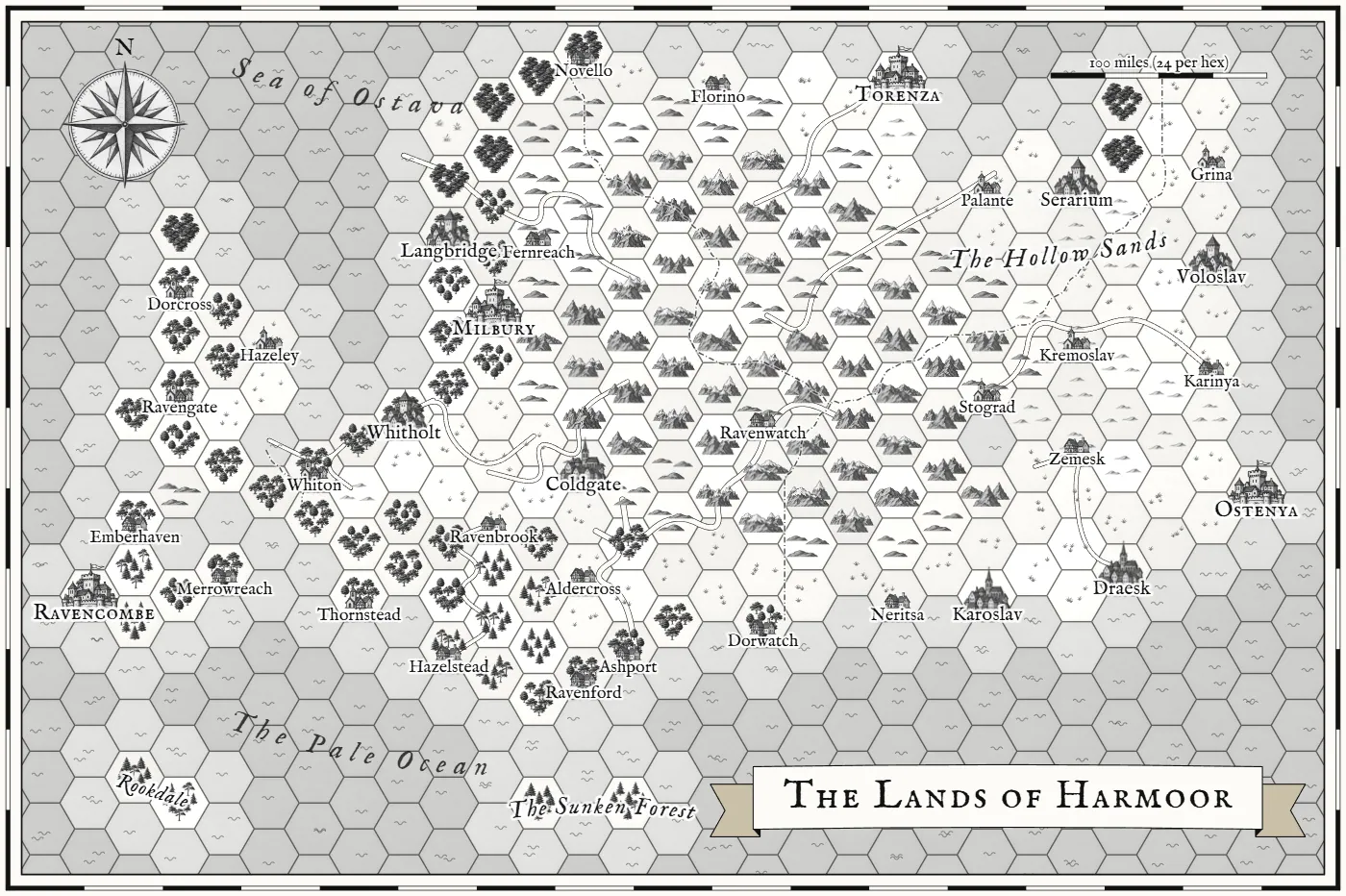
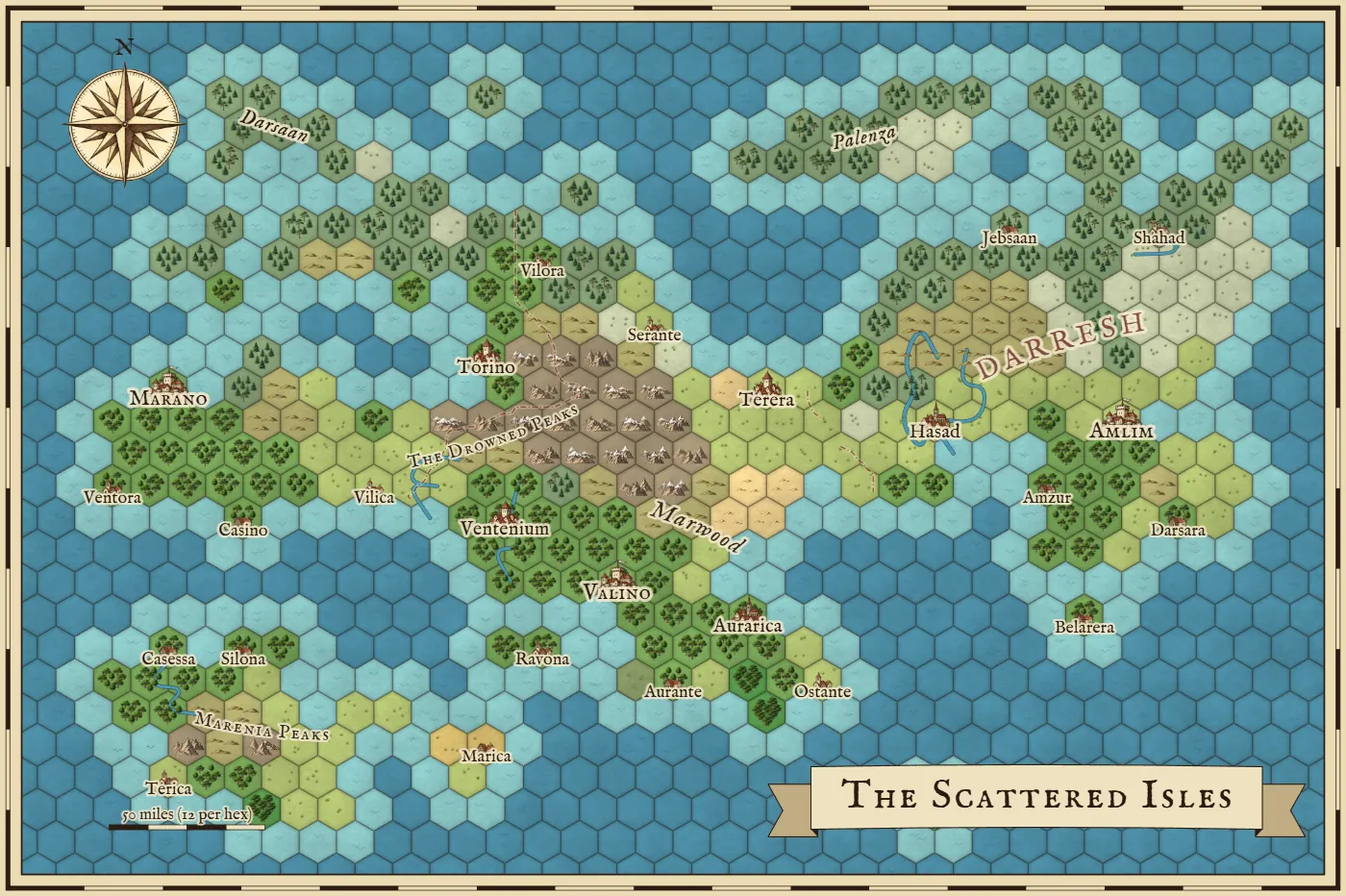
Using a hex map on a virtual tabletop
VTTs need to know how big your hexes are in pixels, so in hex view the Save tab lets you choose that directly: 50, 70, 100, 140 or 200 pixels per hex, measured flat side to flat side. Pick one, download the file, drop it in your scene, set the grid type to match your hex direction and enter that number as the grid size. You may need to nudge the grid's offset a little to line up with the first row. If you turn off the frame and title on the Names tab first, you'll get an edge-to-edge map.
Questions people ask
Is the hex map maker free?
Yes. It's free, there's no watermark on your maps, and you can use them in games and books you sell.
Should I use flat-top or pointy-top hexes?
Use whichever your game or virtual tabletop expects. Flat-top hexes have straight columns and are the usual choice for hexcrawls and most old-school modules. Pointy-top hexes have straight rows. You can switch at any time on the Hex tab, and it doesn't change your world.
Can I use a hex map with Foundry, Roll20 or Owlbear Rodeo?
You can use the PNG on any of them. Pick a pixels-per-hex size on the Save tab and enter that number for the hex grid in your tabletop. There's no special VTT file with walls or lights, and no fog of war. If you need those built in, a dedicated tool like Hexer is a better fit.
Does painting a hex change the painted map?
Yes, because both views show the same world. If you paint a hex as desert and then open Painted map at the top of the page, that patch of land is desert there too, with dunes on it.
Can I start from a blank hex grid?
Yes. On the World tab, set the land shape to Blank sea and you get an empty ocean. Then use the Land and terrain brushes on the Paint tab to build your own map hex by hex.
This printout is the guide only. To print your map, download a PNG from the Save tab and print that.